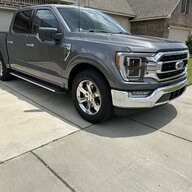
XLT22
Well-known member
- Thread starter
- #1
I wanted to clean this post up and give a rundown of exactly what needs to be done to add SiriusXM to 2022 (maybe other model years as well) trucks that had the option deleted from the build. Before buying anything, remove your lower glove box and verify there's a yellow (Curry) colored plug terminated into a blue cap. If that is there, you're all set.
Parts needed:
ACM (Audio Control Module) *If yours does not have a Sirius Radio ID. To verify, enter diagnostic mode (hold down FF on steering wheel and dash simultaneously, press END on the audio test that begins) and look for the AHU diagnostic. It will show an 8 character Radio ID and barcode if it's Sirius Capable. The other option is simply to make the Forscan changes to the ACM and APIM and check it there. Many trucks have been shipped with a satellite capable ACM without the option being enabled.
Example:

Antenna for RIGHT side (passenger) LC3Z-19A390-F
Female-to-Female Curry Colored FAKRA extension. An example is shown below but Amazon, etc is your fastest option. There is an OEM splitter linked as well if you think you may add a navigation-capable APIM at a later date.
FAKRA Extension
OEM Splitter
Installation is simple. Remove the center speaker (if none is there, remove the plastic tray on top of the dash pocket) that is two screws and various clips. You will need to release (but not remove) the clips on the bezel around the center screen. The ACM is held in place by a bracket that has 4 7mm bolts and 4 7mm bolts on the ACM. You can drop the FAKRA extension from the ACM cavity down to the yellow (Curry) plug by the glove box where it should be connected. Reconnect your dash harness, AM/FM, Sirius and B&O output if that is there.
Moving to the rear passenger side of the cabin, start by removing the center plastic door trim cover at the bottom of the door opening with a pry tool. Pull the weatherstrip from the end all the way around to the front of the door and hang it on the door itself. Remove the clothes hanger by flipping down the plastic flap in the middle and removing the T20 screw. Use the pry tool to slowly work the C pillar trim off the cabin and towards the center of the truck. Once loose, you can pull it out of the way just enough to drop the headliner. Grab the back of the headliner by the back glass and give it a tug, it will pop down.
Looking toward the rear of the truck where the headliner has been pulled down, you'll see a burgundy, yellow (curry) and blue connector. Most likely you'll only have the burgundy and blue connected. Release the clips along with the harness clip on the cab. Use a 10mm wrench to slowly loosen the center bolt on the antenna until it's able to be removed and pull the antenna out. Install the new antenna and begin to tighten the center bolt. The metal "fingers" on the hold down bracket will tighten against the roof. When the antenna feels secure, verify the metal "fingers" are inset into the plastic retainer around 1/8". Do not overtighten it. Connect the yellow (Curry) connector to the curry plug on the body harness and the burgundy connector to the burgundy connector on the body harness.
Now at this point the unused blue connector gives you two options. With it not connected, you will have an inaccurate cellular determined location in your Fordpass app and E911 will also not give a precise location if you use that feature. A "silent" DTC will exist in the TCU with the GPS antenna not connected on a non-nav truck, but this does not affect anything. The "right" way to fix this is to convert to a navigation APIM and splitter called out. A less correct but confirmed working method to fix this is to disassemble the stock antenna that was removed and pull out the GPS receiver and white lead/blue male plug. Connect this to the body harness as it was before and use double sided tape to stick the antenna (roughly 1.5" x 1.5") to the headliner facing up. The antenna is thin and won't prevent the headliner from snapping back in. This will receive enough of a signal through the metal skin to give an accurate location when stopped and with an unobstructed view to the sky. I would not expect accuracy equivalent to a roof mounted antenna in mountains/forests due to it being under metal.

Replace the interior panel, clothes hanger and door seal then open FORSCAN. Please note if you have replaced the ACM, you are best served by running a PMI in FDRS *before* doing anything with FORSCAN. Select "no" in FDRS when prompted for the condition of the module and complete the PMI.
Change the following lines in FORSCAN:
7DO-01-01 *xxx-xxxx-xx This value went from 8 to A.Yours may vary just make sure to enable SDARS .
727-01-01 *xxx-xxxx-xx This value went from B to 3. Same as before, enable SDARS but check your as-built FIRST.
Reset the APIM and you should be all set. You should see the tuner option for Sirius and have access to the preview channel.
Some updated information:
Parts needed:
ACM (Audio Control Module) *If yours does not have a Sirius Radio ID. To verify, enter diagnostic mode (hold down FF on steering wheel and dash simultaneously, press END on the audio test that begins) and look for the AHU diagnostic. It will show an 8 character Radio ID and barcode if it's Sirius Capable. The other option is simply to make the Forscan changes to the ACM and APIM and check it there. Many trucks have been shipped with a satellite capable ACM without the option being enabled.
Example:
Antenna for RIGHT side (passenger) LC3Z-19A390-F
Female-to-Female Curry Colored FAKRA extension. An example is shown below but Amazon, etc is your fastest option. There is an OEM splitter linked as well if you think you may add a navigation-capable APIM at a later date.
FAKRA Extension
OEM Splitter
Installation is simple. Remove the center speaker (if none is there, remove the plastic tray on top of the dash pocket) that is two screws and various clips. You will need to release (but not remove) the clips on the bezel around the center screen. The ACM is held in place by a bracket that has 4 7mm bolts and 4 7mm bolts on the ACM. You can drop the FAKRA extension from the ACM cavity down to the yellow (Curry) plug by the glove box where it should be connected. Reconnect your dash harness, AM/FM, Sirius and B&O output if that is there.
Moving to the rear passenger side of the cabin, start by removing the center plastic door trim cover at the bottom of the door opening with a pry tool. Pull the weatherstrip from the end all the way around to the front of the door and hang it on the door itself. Remove the clothes hanger by flipping down the plastic flap in the middle and removing the T20 screw. Use the pry tool to slowly work the C pillar trim off the cabin and towards the center of the truck. Once loose, you can pull it out of the way just enough to drop the headliner. Grab the back of the headliner by the back glass and give it a tug, it will pop down.
Looking toward the rear of the truck where the headliner has been pulled down, you'll see a burgundy, yellow (curry) and blue connector. Most likely you'll only have the burgundy and blue connected. Release the clips along with the harness clip on the cab. Use a 10mm wrench to slowly loosen the center bolt on the antenna until it's able to be removed and pull the antenna out. Install the new antenna and begin to tighten the center bolt. The metal "fingers" on the hold down bracket will tighten against the roof. When the antenna feels secure, verify the metal "fingers" are inset into the plastic retainer around 1/8". Do not overtighten it. Connect the yellow (Curry) connector to the curry plug on the body harness and the burgundy connector to the burgundy connector on the body harness.
Now at this point the unused blue connector gives you two options. With it not connected, you will have an inaccurate cellular determined location in your Fordpass app and E911 will also not give a precise location if you use that feature. A "silent" DTC will exist in the TCU with the GPS antenna not connected on a non-nav truck, but this does not affect anything. The "right" way to fix this is to convert to a navigation APIM and splitter called out. A less correct but confirmed working method to fix this is to disassemble the stock antenna that was removed and pull out the GPS receiver and white lead/blue male plug. Connect this to the body harness as it was before and use double sided tape to stick the antenna (roughly 1.5" x 1.5") to the headliner facing up. The antenna is thin and won't prevent the headliner from snapping back in. This will receive enough of a signal through the metal skin to give an accurate location when stopped and with an unobstructed view to the sky. I would not expect accuracy equivalent to a roof mounted antenna in mountains/forests due to it being under metal.
Replace the interior panel, clothes hanger and door seal then open FORSCAN. Please note if you have replaced the ACM, you are best served by running a PMI in FDRS *before* doing anything with FORSCAN. Select "no" in FDRS when prompted for the condition of the module and complete the PMI.
Change the following lines in FORSCAN:
7DO-01-01 *xxx-xxxx-xx This value went from 8 to A.Yours may vary just make sure to enable SDARS .
727-01-01 *xxx-xxxx-xx This value went from B to 3. Same as before, enable SDARS but check your as-built FIRST.
Reset the APIM and you should be all set. You should see the tuner option for Sirius and have access to the preview channel.
Some updated information:
I actually used the Sirius xm dealer app to refresh my radio. Then I called to set up my streaming account t as I already had an xm account. They found it right away.
https://apps.apple.com/us/app/siriusxm-dealer/id971618737
So with that app, drive to your dealers parking lot and refresh your radio. It is geofenced so you’ll have to turn on precise location for it and be at the dealer ?
WARNING!!
I did not mention this when I said I was receiving XM, I should of stated. I was getting the Preview channel loud and clear!
Hit a major roadblock that I am trying to work around seems the Radio has not been registered by Ford with Sirius XM!! Tried subscribing online it did not like the radio ID Code. Just called now and tried to set it up over the phone the XM rep could not find it in the system!
Another hurdle? Doubt Ford will be much help.
I even was able to refresh the signal. If anyone has any ideas jump in.
Update:
Called back to XM and asked to speak to tech support, She needed the Radio ID, and vin before passing me on to tech. In doing so she found my Radio ID. She still needed to contact tech support to manually enter the radio ID and Vin
Turns out before a dealer releases a vehicle to the customer, they are to provide that info to XM and have your 3 months free trial running for you on delivery. Since we are going a bit Rogue here it needs to be done as I described, or you can try explaining to your dealer what you did and why and seeing if they will do it.
She was excellent on the phone. so just keep calling till you get someone that knows what they are doing. Everything i gave her i gave the first agent.
So up and running with 3 months free.
For those of you that want to tackle replacing the APIM to add the navigation component, below are a few pictures that of the process. It’s very simple: Remove the trim ring around the screen, remove the long horizontal trim piece from the start button to passenger vent, remove both sides of the center console trim. The HVAC module is held in with 4 screws, remove those and pull out firmly. You’ll need to unplug a few connectors on the left side to allow it to swing out of the way and you have access to remove the APIM. There’s no need to remove the screen.
As far as finding an appropriate part for a 22 model year, good luck! I found a cheap but working 21 model year APIM that unfortunately wouldn’t interface. The build date was 4/2021

Sponsored
Last edited: